
音声ファイルの操作
音声ファイルの分離(Python3.10 & Spleeter利用)
Spleeterとは
Spleeterは、AI技術を用いた音源分離ツールです。
大量の楽曲を学習したモデルに楽曲ファイルを与えることで、最大5種類の楽器に分離してくれます。
ボーカル
ドラム
ベース
ピアノ
その他
ギター、シンセサイザ、効果音etc…
Spleeterで音源分離を行うにあたり「ffmpeg」が必要となります。
Spleeterはpipでインストールすることができます。pip install spleeter
spleeter separate -p spleeter:5stems -o output-cli audio_example.mp3
-pオプションで音源分離のモードを指定します。
どのように分離したいかによって、以下の通り指定を変更してください。
spleeter:2stems
ボーカル/伴奏に分離されます。
spleeter:4stems
ボーカル/ベース/ドラム/その他に分離されます。
spleeter:5stems
ボーカル/ベース/ピアノ/ドラム/その他に分離されます。
音声ファイルからMIDI作成(Python3.10 & Basic-Pitch利用)
Basic Pitch は、 Spotify の Audio Intelligence Labが開発した軽量ニューラルネットワークを使用した、自動音楽文字起こし (AMT) 用の Python ライブラリです。小さく、使いやすく、pip install互換性があり、姉妹リポジトリnpm installを介して互換性があります。
Basic Pitchはシンプルかもしれませんが、「ベーシック」とは程遠いものです。basic-pitch効率的で使いやすく、マルチピッチのサポート、楽器間での一般化機能、音符の精度は、より大規模でリソースを大量に消費するAMTシステムに匹敵します。
互換性のあるオーディオファイルを用意すれば、basic-pitchがピッチベンドを含むMIDIファイルを生成します。basic-pitchは楽器の種類を選ばず、ポリフォニック楽器にも対応しているため、どんな楽器が使われていても、お気に入りの音楽の楽譜作成を自由に楽しめます。basic-pitchは一度に1つの楽器で動作させるのが最適です。
pip install basic-pitch
Basic Pitchを最新バージョンにアップデートするには、--upgrade上記のコマンドに以下を追加してください。
互換性のある環境:
macOS、Windows、Ubuntuオペレーティングシステム
Python バージョン 3.7、3.8、3.9、3.10、3.11
Mac M1ハードウェアの場合、現在サポートしているPythonバージョンは3.10のみです。それ以外の場合は、仮想マシンのご利用をお勧めします。
楽譜イメージから楽譜データ作成(Audiveris利用)
Audiveris - オープンソースの光学式音楽認識ソフトウェア
OMRアプリケーションの目的は、エンドユーザーが楽譜画像を対応する記号に変換できるようにすることです。これにより、再生、楽譜編集、検索、再出版など、さまざまなデジタル処理への応用が可能になります。
Audiverisアプリケーションは、OMRエンジンとOMRエディタという2つの主要コンポーネントの緊密な統合に基づいて構築されています。
OMRエンジンは、認識対象となるエンティティの種類に応じて、さまざまな技術を組み合わせています。線にはアドホックな手法、梁には画像形態学的クロージング、テキストには外部OCR、頭部にはテンプレートマッチング、その他の固定サイズの形状にはニューラルネットワークが用いられます。
特に低品質スコアに関しては大きな進歩が見られましたが、経験上、多くの場合、100%の認識率は達成不可能であることがわかっています。
OMRエディタは、エンジンの弱点を便利な方法で克服するために役立ちます。ユーザーは、現在の楽譜の転写を開始する前に、処理スイッチを事前に選択してOMRエンジンを調整できます。その後、残りの間違いは、いくつかの音楽記号を手動で編集することで、通常は迅速に修正できます。
主な特徴
実世界の質的スコア(IMSLPサイトで見られるようなスコア)に対する認識効率が高い。
大規模な楽譜(数百ページにも及ぶもの)にも効果的に対応
ほとんどのOMRエラーを検出して修正するための、ユーザー指向の便利なインターフェース
Windows、Linux、macOSで利用可能
オープンソース
エンジン音楽情報(OMRデータ)の中核部分は完全に文書化され、XMLベースの.omrプロジェクトファイルまたは本ソフトウェアのJava APIを介して直接公開されています。Audiveris
には、このOMRデータ(の一部)を MusicXML 4.0形式に書き込むための統合エクスポーターが付属しています。将来的には、OMRデータを基に他のターゲット形式をサポートするエクスポーターも開発される予定です。
楽譜データからMIDIファイルの作成(MuseScore4利用)
高機能かつ使いやすい作曲&楽譜作成ソフト。
“ 五線譜 ” や “ TAB 譜 ” を使って作曲するのと同じような感覚で、楽曲制作を行うことができます。
各種演奏表現 / 装飾記号 の入力、ドラム符入力、音符の声部分け… 等々の機能に対応しています。
作成した楽曲は、MIDI / WAVE / MP3 / FLAC / OGG 形式の音声ファイルとして保存したり、XML / PDF / PNG / SVG / PS 形式の譜面データとして保存したりすることができます。
MuseScoreは、高機能な作曲&譜面作成ソフトです。
画面に表示された五線譜 / TAB 譜上に、音符(やフレット番号)を直接入力していくことで楽曲制作を行うことができる… という WYSIWYG 型のビジュアル的な作曲ソフトです。
最大の特徴は、多機能な割りに使いやすいところ。
操作はマウスでもキーボードでも行うことができ、またインターフェースも比較的シンプルな構成になっているため、割とサクサク曲を作っていくことができます。
MIDIファイルの再生(DryWetMidi & VirtualMidiSynth & soundFont利用)
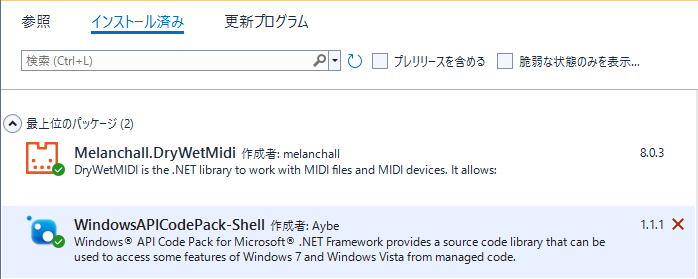
DryWetMIDIは、MIDIデータとMIDIデバイスを操作するための.NETライブラリです。以下の機能を提供します。
標準MIDIファイル(SMF)の読み書きと作成が可能です。また、以下の操作も可能です。
SMFがRIFFチャンクにラップされたRMIDファイルを読み込む。
ファイル内のあらゆるエラーが個別の例外クラスとして提示されるため、MIDIファイルの読み書き時に発生する特定のエラーを容易に検出できます。
読み書きのプロセスを細かく調整する(例えば、破損したファイルを読み込んで修復したり、MIDIファイルバリデーターを作成したりすることが可能になる)。
MIDIファイルへの書き込みおよび読み取りが可能な、カスタムメタイベントとカスタムチャンクを実装する。
MIDI機器にMIDIイベントを送信したり、MIDI機器からMIDIイベントを受信したりする。
MIDIデータを再生して録音する。
MIDIデータは、MIDIイベントなどの低レベルオブジェクト、またはノートなどの高レベルオブジェクトを使用して、さまざまな時間と長さの表現で管理できます(ライブラリドキュメントの「高レベルデータ管理」セクションを参照してください)。
VirtualMIDISynthは、各種 MIDI ツール上で、任意のサウンドフォントを音源として使えるようにする MIDI ドライバー。
世界中で配布されているサウンドフォントを、手持ちの MIDI ツール上で使用できるようにしてくれます。
複数のサウンドフォントを組み合わせる機能や、既定の MIDI デバイスを設定する機能(MIDI マッパー)、専用の MIDI ミキサー... などが付いています。
VirtualMIDISynthは、MIDI ツール上でサウンドフォント(sf2)を使えるようにするソフトです。
ネット上で入手した任意のサウンドフォントを、各種 MIDI ツール上で音源として使えるようにしてくれる... というサウンドフォント対応化ツールです。
操作... というか設定は非常に簡単で、基本的に
- 使用したいサウンドフォントを、「VirtualMIDISynth」に登録
- 各種 MIDI ソフト上で、使用する音源として「VirtualMIDISynth」を選択るだけ
実行画面
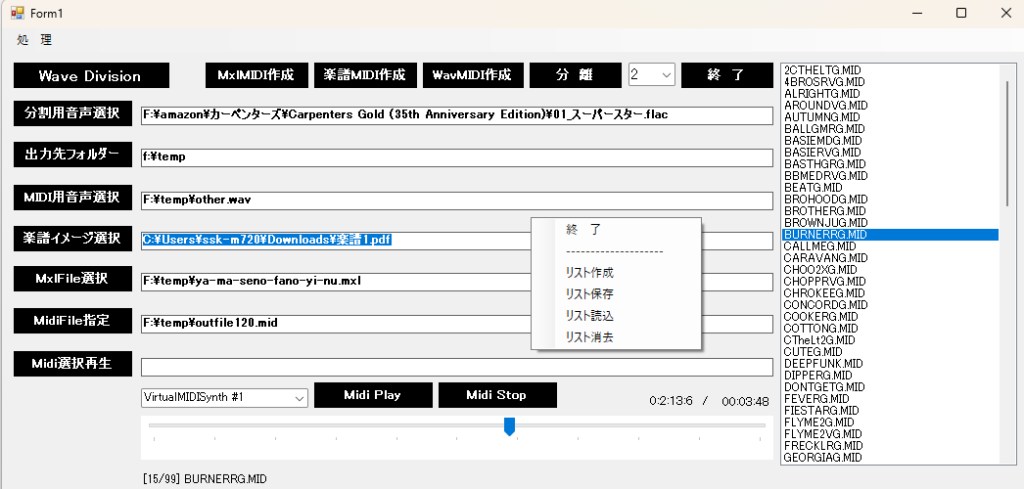
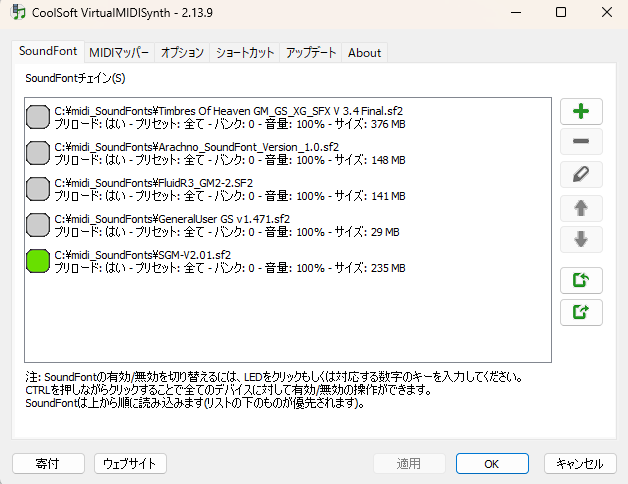
Form1
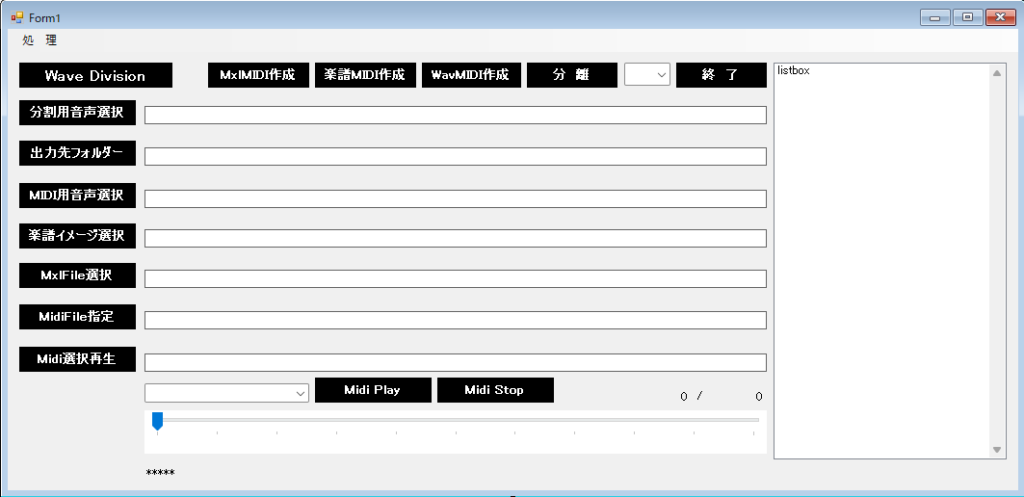
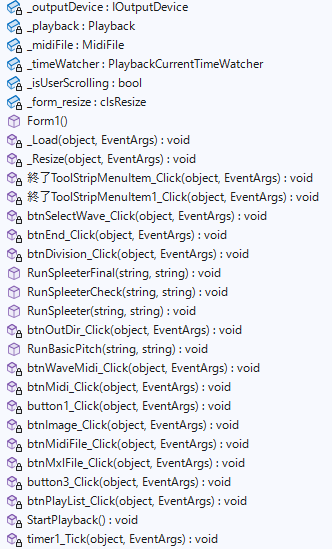
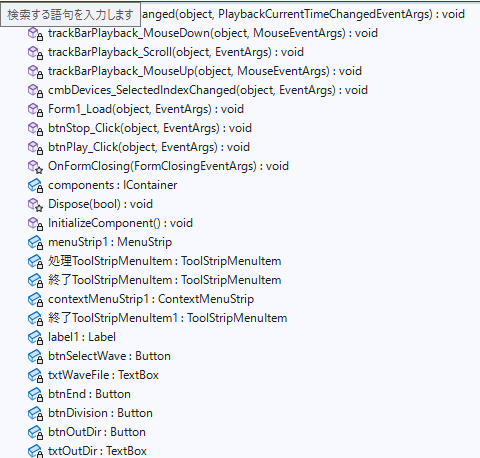
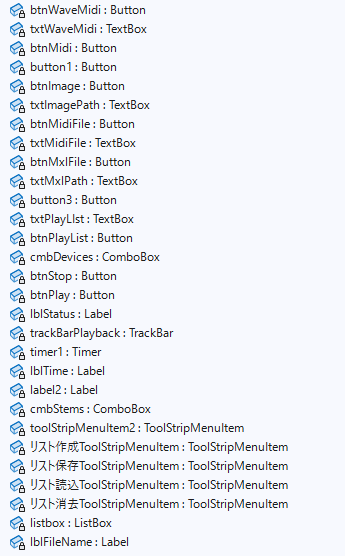
Form1.cs
using Melanchall.DryWetMidi.Common;
using Melanchall.DryWetMidi.Core;
using Melanchall.DryWetMidi.Interaction;
using Melanchall.DryWetMidi.Multimedia;
using Melanchall.DryWetMidi.MusicTheory;
using Microsoft.WindowsAPICodePack.Dialogs;
using System;
using System.Collections.Generic;
using System.ComponentModel;
using System.Data;
using System.Diagnostics;
using System.Drawing;
using System.IO;
using System.Linq;
using System.Text;
using System.Threading.Tasks;
using System.Windows.Forms;
using System.Xml.Linq; // 標準機能
namespace FrmWavDiv
{
public partial class Form1 : Form
{
private IOutputDevice _outputDevice;
private Playback _playback;
private MidiFile _midiFile;
private PlaybackCurrentTimeWatcher _timeWatcher;
private bool _isUserScrolling = false; // ユーザーが操作中かどうかのフラグ
List<string> playlist = new List<string>();
int currentIndex = 0;
//control clsResize 画面表示を拡大縮小します。
clsResize _form_resize;
public Form1()
{
InitializeComponent();
txtOutDir.Text = @"f:\temp";
//clsResize
_form_resize = new clsResize(this); //I put this after the initialize event to be sure that all controls are initialized properly
this.Load += new EventHandler(_Load); //This will be called after the initialization // form_load
this.Resize += new EventHandler(_Resize); //form_resize
//
//stems
cmbStems.Items.Add("2");
cmbStems.Items.Add("3");
cmbStems.Items.Add("4");
cmbStems.SelectedIndex = 0;
}
//clsResize _Load
private void _Load(object sender, EventArgs e)
{
_form_resize._get_initial_size();
}
//clsResize _Resize
private void _Resize(object sender, EventArgs e)
{
_form_resize._resize();
}
private void 終了ToolStripMenuItem_Click(object sender, EventArgs e)
{
this.Close();
}
private void 終了ToolStripMenuItem1_Click(object sender, EventArgs e)
{
this.Close();
}
private void btnSelectWave_Click(object sender, EventArgs e)
{
using (CommonOpenFileDialog cofd = new CommonOpenFileDialog())
{
cofd.Title = "音声ファイルを選択。";
cofd.InitialDirectory = @"f:\amazon";
// ファイルを選択できるようにする
cofd.IsFolderPicker = false;
if (cofd.ShowDialog() == CommonFileDialogResult.Ok)
{
//選択されたファイルを表示する
txtWaveFile.Text = cofd.FileName;
}
}
}
private void btnEnd_Click(object sender, EventArgs e)
{
this.Close();
}
private void btnDivision_Click(object sender, EventArgs e)
{
RunSpleeterFinal(txtWaveFile.Text, txtOutDir.Text);
}
public void RunSpleeterFinal(string inputWavPath, string outputDirPath)
{
string spleeterExe = @"C:\Users\ssk-m720\AppData\Roaming\Python\Python310\Scripts\spleeter.exe";
// Trim() でパスの前後にある「見えない空白」を完全に消去します
string fullInput = Path.GetFullPath(inputWavPath).Trim();
string fullOutput = Path.GetFullPath(outputDirPath).Trim();
// 引数の組み立て: -o の後にスペースを入れ、パスを引用符で囲む
string arguments = "";
if (cmbStems.Text == "2") { arguments = $"separate -p spleeter:2stems -o \"{fullOutput}\" \"{fullInput}\""; }
if (cmbStems.Text == "4") { arguments = $"separate -p spleeter:4stems -o \"{fullOutput}\" \"{fullInput}\""; }
if (cmbStems.Text == "5") { arguments = $"separate -p spleeter:5stems -o \"{fullOutput}\" \"{fullInput}\""; }
ProcessStartInfo start = new ProcessStartInfo
{
FileName = spleeterExe,
Arguments = arguments,
UseShellExecute = false,
RedirectStandardOutput = true,
RedirectStandardError = true,
CreateNoWindow = true
};
using (Process process = Process.Start(start))
{
// 実行中のメッセージをリアルタイムで表示(これで見守れます)
process.OutputDataReceived += (s, e) => { if (e.Data != null) Console.WriteLine(e.Data); };
process.ErrorDataReceived += (s, e) => { if (e.Data != null) Console.WriteLine(e.Data); };
process.BeginOutputReadLine();
process.BeginErrorReadLine();
process.WaitForExit();
Console.WriteLine($"完了! 終了コード: {process.ExitCode}");
}
}
public void RunSpleeterCheck(string inputWavPath, string outputDirPath)
{
string spleeterExe = @"C:\Users\ssk-m720\AppData\Roaming\Python\Python310\Scripts\spleeter.exe";
// 絶対パスを取得し、前後の空白を削除
string fullInput = Path.GetFullPath(inputWavPath).Trim();
string fullOutput = Path.GetFullPath(outputDirPath).Trim();
// 引数を組み立てる(デバッグ用に表示)
// -o の後ろにスペースが必要な場合があるため調整
//string arguments = $"separate -p spleeter:2stems -o \"{fullOutput}\" \"{fullInput}\"";
// -o と \" の間に半角スペースを1つ確実に入れる
string arguments = $"separate -p spleeter:2stems -o \"{fullOutput}\" \"{fullInput}\"";
Console.WriteLine("--- 実行コマンドの確認 ---");
Console.WriteLine($"EXE: {spleeterExe}");
Console.WriteLine($"ARGS: {arguments}");
Console.WriteLine("--------------------------");
ProcessStartInfo start = new ProcessStartInfo
{
FileName = spleeterExe,
Arguments = arguments,
UseShellExecute = false, // ログをキャッチするためにfalseに戻す
RedirectStandardError = true,
RedirectStandardOutput = true,
CreateNoWindow = true
};
using (Process process = Process.Start(start))
{
// エラー内容を直接読み取る
string error = process.StandardError.ReadToEnd();
process.WaitForExit();
if (!string.IsNullOrEmpty(error))
{
Console.WriteLine("【Spleeterからのエラーメッセージ】");
Console.WriteLine(error);
}
Console.WriteLine($"終了コード: {process.ExitCode}");
}
}
public void RunSpleeter(string inputWavPath, string outputDirPath)
{
// 画像で確認した spleeter.exe のフルパスを正確に指定
string spleeterExe = @"C:\Users\ssk-m720\AppData\Roaming\Python\Python310\Scripts\spleeter.exe";
// 入出力パスを絶対パスに変換(エラー防止のため重要)
string fullInput = Path.GetFullPath(inputWavPath);
string fullOutput = Path.GetFullPath(outputDirPath);
// 引数の設定: 2つ(ボーカルと伴奏)に分離
string arguments = $"separate -p spleeter:2stems -o \"{fullOutput}\" \"{fullInput}\"";
ProcessStartInfo start = new ProcessStartInfo
{
FileName = spleeterExe,
Arguments = arguments,
UseShellExecute = false,
RedirectStandardOutput = true,
RedirectStandardError = true, // エラーも取得できるようにする
CreateNoWindow = true
};
try
{
using (Process process = Process.Start(start))
{
// ログをリアルタイムで確認したい場合(デバッグ用)
string output = process.StandardOutput.ReadToEnd();
string error = process.StandardError.ReadToEnd();
// これを追加すると、実行中のメッセージがコンソールに出るようになります
process.OutputDataReceived += (s, e) => { if (e.Data != null) Console.WriteLine(e.Data); };
process.ErrorDataReceived += (s, e) => { if (e.Data != null) Console.WriteLine(e.Data); };
process.BeginOutputReadLine();
process.BeginErrorReadLine();
process.WaitForExit();
if (process.ExitCode == 0)
{
Console.WriteLine("分離成功!");
}
else
{
Console.WriteLine("エラー発生: " + error);
}
}
}
catch (System.Exception ex)
{
Console.WriteLine("実行エラー: " + ex.Message);
}
}
private void btnOutDir_Click(object sender, EventArgs e)
{
using (CommonOpenFileDialog cofd = new CommonOpenFileDialog())
{
cofd.Title = "出力フォルダーを選択。";
cofd.InitialDirectory = @"f:\tmp";
// フォルダーを選択できるようにする
cofd.IsFolderPicker = true;
if (cofd.ShowDialog() == CommonFileDialogResult.Ok)
{
//選択されたファイルを表示する
txtOutDir.Text = cofd.FileName;
}
}
}
public void RunBasicPitch(string inputWavPath, string outputDirPath)
{
// basic-pitch.exe のパス(Scriptsフォルダ内)
string basicPitchExe = @"C:\Program Files\python3_10\Scripts\basic-pitch.exe";
string fullInput = Path.GetFullPath(inputWavPath);
string fullOutput = Path.GetFullPath(outputDirPath);
// 引数の順序: [出力先フォルダ] [入力ファイル]
string arguments = $"\"{fullOutput}\" \"{fullInput}\"";
ProcessStartInfo start = new ProcessStartInfo
{
FileName = basicPitchExe,
Arguments = arguments,
// ★重要:管理者権限で実行するためのセット
Verb = "runas",
UseShellExecute = true, // runas を使う場合は必ず true
CreateNoWindow = false, // 管理者実行時はウィンドウを表示させるのが確実です
// 【注意】管理者実行(true)のときは、以下のリダイレクト設定は「すべて削除」します
// RedirectStandardOutput = true, (削除)
// RedirectStandardError = true, (削除)
// StandardOutputEncoding = ... (削除)
};
// 実行(環境変数の設定も UseShellExecute = true では使えないため削除します)
using (Process process = Process.Start(start))
{
process.WaitForExit();
}
}
private void btnWaveMidi_Click(object sender, EventArgs e)
{
using (CommonOpenFileDialog cofd = new CommonOpenFileDialog())
{
cofd.Title = "MIDI用音声ファイルを選択。";
cofd.InitialDirectory = @"f:\amazon";
// ファイルを選択できるようにする
cofd.IsFolderPicker = false;
if (cofd.ShowDialog() == CommonFileDialogResult.Ok)
{
//選択したファイルを表示する
txtWaveMidi.Text = cofd.FileName;
}
}
}
private void btnMidi_Click(object sender, EventArgs e)
{
RunBasicPitch(txtWaveMidi.Text, txtOutDir.Text);
}
private void button1_Click(object sender, EventArgs e)
{
ScoreToMidiConverter s = new ScoreToMidiConverter();
s.FullProcess(txtImagePath.Text,txtMidiFile.Text);
}
private void btnImage_Click(object sender, EventArgs e)
{
using (CommonOpenFileDialog cofd = new CommonOpenFileDialog())
{
cofd.Title = "楽譜イメージファイルを選択。";
cofd.InitialDirectory = @"f:\temp";
// ファイルを選択できるようにする
cofd.IsFolderPicker = false;
if (cofd.ShowDialog() == CommonFileDialogResult.Ok)
{
//選択されたファイルを表示する
txtImagePath.Text = cofd.FileName;
}
}
}
private void btnMidiFile_Click(object sender, EventArgs e)
{
using (SaveFileDialog sfd = new SaveFileDialog())
{
sfd.Title = "Midiファイルを指定。";
sfd.InitialDirectory = @"f:\temp";
if (sfd.ShowDialog() == DialogResult.OK)
{
//指定したファイルを表示する
txtMidiFile.Text = sfd.FileName;
}
}
}
private void btnMxlFile_Click(object sender, EventArgs e)
{
using (OpenFileDialog ofd = new OpenFileDialog())
{
ofd.Title = "Mxlファイルを指定。";
ofd.InitialDirectory = @"f:\temp";
if (ofd.ShowDialog() == DialogResult.OK)
{
//選択したファイルを表示する
txtMxlPath.Text = ofd.FileName;
}
}
}
private void button3_Click(object sender, EventArgs e)
{
ScoreToMidiConverter s = new ScoreToMidiConverter();
s.MxlProcess(txtMxlPath.Text, txtMidiFile.Text);
}
private void btnPlayList_Click(object sender, EventArgs e)
{
using (OpenFileDialog ofd = new OpenFileDialog())
{
ofd.Title = "MIDIファイルを選択。";
ofd.InitialDirectory = @"f:\temp";
if (ofd.ShowDialog() == DialogResult.OK)
{
//選択したファイルを表示する
txtPlayLIst.Text = ofd.FileName;
_midiFile = MidiFile.Read(ofd.FileName); ;
StartPlayback();
}
}
}
// ★ 音源を切り替えて再生を始めるメソッド
private void StartPlayback()
{
if (_midiFile == null) return;
// 1. 再生中なら止めて破棄(イベントも解除)
if (_playback != null)
{
_playback.Finished -= OnPlaybackFinished;
_playback.Stop();
_playback.Dispose();
_playback = null;
}
// プレイリストの範囲内か念のためチェック
if (currentIndex < 0 || currentIndex >= playlist.Count) return;
//2026-04-06
//_outputDevice = OutputDevice.GetByName(cmbDevices.SelectedItem.ToString());
//_playback = _midiFile.GetPlayback(_outputDevice);
// スライダーの最大値を「数値」として取得
var duration = (MidiTimeSpan)_midiFile.GetDuration(TimeSpanType.Midi);
MetricTimeSpan duration2 = _midiFile.GetDuration<MetricTimeSpan>();
TimeSpan ts = (TimeSpan)duration2;
lblStatus.Text= ts.ToString(@"hh\:mm\:ss");
trackBarPlayback.Maximum = (int)duration.TimeSpan;
trackBarPlayback.Value = 0;
// ★ ここに追加!目盛りの定義 ★
trackBarPlayback.TickStyle = TickStyle.BottomRight; // 目盛りを表示する設定
// 全体を10等分して目盛りを打つ(シンプルで確実)
if (trackBarPlayback.Maximum > 0)
{
trackBarPlayback.TickFrequency = trackBarPlayback.Maximum / 10;
}
try
{
// 3. 再生オブジェクトを作成(_outputDevice は使い回すのが安全)
_playback = _midiFile.GetPlayback(_outputDevice);
_playback.Finished += OnPlaybackFinished;
_playback.Start();
timer1.Enabled = true; // タイマー起動!
}
catch (Exception ex)
{
MessageBox.Show("再生開始エラー: " + ex.Message);
}
// 再生終了イベントを登録
//_playback.Finished += OnPlaybackFinished;
// 再生してタイマー開始
//_playback.Start();
//timer1.Enabled = true; // タイマー起動!
}
private void timer1_Tick(object sender, EventArgs e)
{
if (_playback != null && _playback.IsRunning)
{
// 今の場所を数値で取って、スライダーに入れる
var current = (MidiTimeSpan)_playback.GetCurrentTime(TimeSpanType.Midi);
trackBarPlayback.Value = (int)Math.Min(current.TimeSpan, trackBarPlayback.Maximum);
var timeSpan = (MetricTimeSpan)_playback.GetCurrentTime(TimeSpanType.Metric);
lblTime.Text = timeSpan.ToString(); // "00:00:15" 形式で表示
}
else
{
timer1.Stop();
}
}
private void OnCurrentTimeChanged(object sender, PlaybackCurrentTimeChangedEventArgs e)
{
// スライダーが自動で右に動くための処理
if (trackBarPlayback.InvokeRequired)
{
this.Invoke(new Action(() => {
var time = e.Times.OfType<MidiTimeSpan>().FirstOrDefault();
if (time != null)
{
trackBarPlayback.Value = (int)Math.Min(time.TimeSpan, trackBarPlayback.Maximum);
}
}));
}
}
// ① スライダーをマウスで押し下げた時
private void trackBarPlayback_MouseDown(object sender, MouseEventArgs e)
{
_isUserScrolling = true;
}
// ② スライダーを動かしている時(Scrollイベント)
private void trackBarPlayback_Scroll(object sender, EventArgs e)
{
if (_playback == null) return;
// スライダーの値を「MidiTimeSpan」として渡す
// これが型変換エラーや無視の原因になりやすいポイントです
_playback.MoveToTime(new MidiTimeSpan(trackBarPlayback.Value));
}
// ③ マウスを離した時
private void trackBarPlayback_MouseUp(object sender, MouseEventArgs e)
{
_isUserScrolling = false;
}
// コンボボックスの値が変わった瞬間に切り替える場合
private void cmbDevices_SelectedIndexChanged(object sender, EventArgs e)
{
// すでに再生中の場合のみ、即座に切り替える
if (_playback != null && _playback.IsRunning)
{
StartPlayback();
}
}
private void Form1_Load(object sender, EventArgs e)
{
// 利用可能な出力デバイスをすべて取得してComboBoxに追加
var devices = OutputDevice.GetAll();
foreach (var device in devices)
{
cmbDevices.Items.Add(device.Name);
}
// 最初に見つかったデバイスを選択しておく(任意)
if (cmbDevices.Items.Count > 0) cmbDevices.SelectedIndex = 0;
trackBarPlayback.Scroll += trackBarPlayback_Scroll;
_outputDevice = OutputDevice.GetByIndex(0); // 適切なデバイスID
}
private void btnStop_Click(object sender, EventArgs e)
{
_playback.Stop();
}
private void btnPlay_Click(object sender, EventArgs e)
{
_playback.Start();
}
// フォームを閉じるときに必ず解放する
protected override void OnFormClosing(FormClosingEventArgs e)
{
_playback?.Dispose();
_outputDevice?.Dispose();
base.OnFormClosing(e);
}
private void cmbStems_SelectedIndexChanged(object sender, EventArgs e)
{
cmbStems.Text = cmbStems.SelectedItem.ToString();
}
private void リスト作成ToolStripMenuItem_Click(object sender, EventArgs e)
{
using (var ofd = new OpenFileDialog { Multiselect = true, Filter = "MIDI Files|*.mid|All Files|*.*" })
{
if (ofd.ShowDialog() == DialogResult.OK)
{
// 選択されたファイルパスをすべて追加
foreach (var f in ofd.FileNames)
{
playlist.Add(f);
listbox.Items.Add(Path.GetFileName(f)); // ファイル名だけ表示
}
currentIndex = 0;
_midiFile = MidiFile.Read(playlist[currentIndex]);
StartPlayback();
UpdateTitle(); // タイトル更新
}
}
}
private void リスト保存ToolStripMenuItem_Click(object sender, EventArgs e)
{
using (var sfd = new SaveFileDialog { Filter = "PlayList Files(*.plm)|*.plm;" })
{
if (sfd.ShowDialog() == DialogResult.OK)
{
string[] lines = playlist.Cast<object>().Select(x => x.ToString()).ToArray();
System.IO.File.WriteAllLines(sfd.FileName, lines);
}
}
}
private void リスト読込ToolStripMenuItem_Click(object sender, EventArgs e)
{
using (var ofd = new OpenFileDialog { Filter = "PlayList Files(*.plm)|*.plm;" })
{
if (ofd.ShowDialog() == DialogResult.OK)
{
// 全行を読み込んで配列にする(文字コードがUTF-8の場合)
string[] lines = File.ReadAllLines(ofd.FileName);
// ListBoxをクリア
listbox.Items.Clear();
playlist.Clear();
// ListBoxに配列を一括追加
foreach (string item in lines)
{
string[] parts = item.Split('\\');
string result = parts[parts.Length - 1];
listbox.Items.Add(result);
}
playlist.AddRange(lines);
currentIndex = 0;
_midiFile = MidiFile.Read(playlist[currentIndex]);
StartPlayback();
UpdateTitle(); // タイトル更新
}
}
}
private void リスト消去ToolStripMenuItem_Click(object sender, EventArgs e)
{
if (_playback != null && _playback.IsRunning)
{
_playback.Stop();
playlist.Clear();
listbox.Items.Clear();
lblFileName.Text = "*****";
}
}
private void UpdateTitle()
{
if (playlist.Count > 0)
{
string name = Path.GetFileName(playlist[currentIndex]);
lblFileName.Text = $"[{currentIndex + 1}/{playlist.Count}] {name}";
Console.WriteLine(playlist[currentIndex]);
Console.WriteLine(lblFileName.Text);
// リストボックスの選択状態を同期
if (listbox.Items.Count > currentIndex)
{
listbox.SelectedIndex = currentIndex;
}
}
}
private void listbox_MouseDoubleClick(object sender, MouseEventArgs e)
{
if (listbox.SelectedIndex != -1)
{
currentIndex = listbox.SelectedIndex;
_midiFile = MidiFile.Read(playlist[currentIndex]);
StartPlayback();
UpdateTitle(); // タイトル更新
}
}
// 次のファイルを再生するメソッド
void PlayNext()
{
if (playlist.Count == 0) return;
currentIndex++;
// 最後まで行ったら最初に戻る(ループ)
if (currentIndex >= playlist.Count) currentIndex = 0;
_midiFile = MidiFile.Read(playlist[currentIndex]);
StartPlayback();
UpdateTitle();
}
// 再生終了イベントの登録
private void OnPlaybackFinished(object sender, EventArgs e)
{
if (this.IsDisposed || !this.IsHandleCreated) return;
// BeginInvoke にすることで、再生スレッドをブロックせずにUI処理を予約します
this.BeginInvoke(new Action(() =>
{
PlayNext();
}));
}
}
}
ScoreToMidiConverter.cs
using Melanchall.DryWetMidi.Common;
using Melanchall.DryWetMidi.Core;
using Melanchall.DryWetMidi.Interaction; // TempoMap用
using System;
using System.Diagnostics;
using System.IO;
using System.IO.Compression; // これを追加
using System.Linq;
using System.Xml.Linq;
using System.Collections.Generic;
using System.Windows.Forms; // ← これが Dictionary に必要です

public class ScoreToMidiConverter
{
    // --- 設定:あなたのPCの環境に合わせて書き換えてください ---
    string audiverisExe = @"C:\Program Files\Audiveris\Audiveris.exe";
    string outputFolder = @"f:\Temp";

    public void FullProcess(string inputImagePath, string outputMidiPath)
    {
        // 【手順1】画像からXMLを書き出す(Audiverisを呼び出す)
        if (!Directory.Exists(outputFolder)) Directory.CreateDirectory(outputFolder);

        ProcessStartInfo audiverisStartInfo = new ProcessStartInfo
        {
            FileName = audiverisExe,
            Arguments = $"-batch -export -output \"{outputFolder}\" \"{inputImagePath}\"",
            CreateNoWindow = true,
            UseShellExecute = false
        };

        Console.WriteLine("画像を解析中... (Audiverisを実行中)");
        using (Process process = Process.Start(audiverisStartInfo))
        {
            process.WaitForExit();
        }

        // 【手順2】書き出されたXML(またはMXL)ファイルを探す
        // ※パスを手動固定されている場合はそのままでも動くようにしています
        string xmlFile = "";
        if (!File.Exists(xmlFile))
        {
            xmlFile = Directory.GetFiles(outputFolder, "*.mxl").OrderByDescending(f => File.GetCreationTime(f)).FirstOrDefault()
                      ?? Directory.GetFiles(outputFolder, "*.xml").OrderByDescending(f => File.GetCreationTime(f)).FirstOrDefault();
        }

        if (xmlFile == null || !File.Exists(xmlFile))
        {
            Console.WriteLine("解析に失敗しました(XMLが見つかりません)");
            return;
        }

        // 【手順3】MuseScoreエンジンを呼び出してMIDIに変換する
        // 自力でXMLを読み込む「ムダな計算」はすべて捨てて、MuseScoreに任せます

        // MuseScoreの実行ファイルパス(インストール先に合わせて適宜変更してください)
        string museScorePath = @"C:\Program Files\MuseScore 4\bin\MuseScore4.exe";

        if (!File.Exists(museScorePath))
        {
            Console.WriteLine("エラー: MuseScoreが見つかりません。パスを確認してください。");
            return;
        }

        ProcessStartInfo mscoreStartInfo = new ProcessStartInfo
        {
            FileName = museScorePath,
            // -o で出力ファイルを指定。これでXMLを読み込んでMIDIを吐き出します
            Arguments = $"-o \"{outputMidiPath}\" \"{xmlFile}\"",
            CreateNoWindow = true,
            UseShellExecute = false,
            RedirectStandardOutput = true,
            RedirectStandardError = true
        };

        Console.WriteLine("MuseScoreエンジンで高品質なMIDIを生成中...");

        try
        {
            using (Process process = Process.Start(mscoreStartInfo))
            {
                process.WaitForExit();

                if (process.ExitCode == 0)
                {
                    Console.WriteLine("-----------------------------------------");
                    Console.WriteLine($"MIDIが完成しました!: {outputMidiPath}");
                    Console.WriteLine("-----------------------------------------");
                    MessageBox.Show(outputMidiPath + " <--- MIDIが完成しました.");
                }
                else
                {
                    string error = process.StandardError.ReadToEnd();
                    Console.WriteLine($"MuseScoreエラー: {error}");
                    MessageBox.Show($"MuseScoreエラー: {error}");
                }
            }
        }
        catch (Exception ex)
        {
            Console.WriteLine($"実行エラー: {ex.Message}");
        }
    }

    public void MxlProcess(string inputXmlPath, string outputMidiPath)
    {

        // ※パスを手動固定されている場合はそのままでも動くようにしています
        string xmlFile = inputXmlPath;
        if (!File.Exists(xmlFile))
        {
            xmlFile = Directory.GetFiles(outputFolder, "*.mxl").OrderByDescending(f => File.GetCreationTime(f)).FirstOrDefault()
                      ?? Directory.GetFiles(outputFolder, "*.xml").OrderByDescending(f => File.GetCreationTime(f)).FirstOrDefault();
        }

        if (xmlFile == null || !File.Exists(xmlFile))
        {
            Console.WriteLine("解析に失敗しました(XMLが見つかりません)");
            return;
        }

        // 【手順3】MuseScoreエンジンを呼び出してMIDIに変換する
        // 自力でXMLを読み込む「ムダな計算」はすべて捨てて、MuseScoreに任せます

        // MuseScoreの実行ファイルパス(インストール先に合わせて適宜変更してください)
        string museScorePath = @"C:\Program Files\MuseScore 4\bin\MuseScore4.exe";

        if (!File.Exists(museScorePath))
        {
            Console.WriteLine("エラー: MuseScoreが見つかりません。パスを確認してください。");
            return;
        }

        ProcessStartInfo mscoreStartInfo = new ProcessStartInfo
        {
            FileName = museScorePath,
            // -o で出力ファイルを指定。これでXMLを読み込んでMIDIを吐き出します
            Arguments = $"-o \"{outputMidiPath}\" \"{xmlFile}\"",
            CreateNoWindow = true,
            UseShellExecute = false,
            RedirectStandardOutput = true,
            RedirectStandardError = true
        };

        Console.WriteLine("MuseScoreエンジンで高品質なMIDIを生成中...");

        try
        {
            using (Process process = Process.Start(mscoreStartInfo))
            {
                process.WaitForExit();

                if (process.ExitCode == 0)
                {
                    Console.WriteLine("-----------------------------------------");
                    Console.WriteLine($"MIDIが完成しました!: {outputMidiPath}");
                    Console.WriteLine("-----------------------------------------");
                    MessageBox.Show(outputMidiPath + " <--- MIDIが完成しました.");
                }
                else
                {
                    string error = process.StandardError.ReadToEnd();
                    Console.WriteLine($"MuseScoreエラー: {error}");
                    MessageBox.Show($"MuseScoreエラー: {error}");
                }
            }
        }
        catch (Exception ex)
        {
            Console.WriteLine($"実行エラー: {ex.Message}");
        }
    }

}
 SpleeterとはSpleeterは、AI技術を用いた音源分離ツールです。大量の楽曲を学習したモデルに楽曲フ)