
Google Speech-to-Text 音声ファイルをテキスト化 V2利用 C#
AI による概要
C# でGoogle Speech-to-Text v2 API を使用するには、NuGet 経由で C# 用の公式 Google Cloud クライアント ライブラリをインストールし、提供されているクラスを使用して認証と文字起こしのリクエストを処理する必要があります。
セットアップと要件
- Google Cloud プロジェクト: Speech-to-Text API が有効になっている Google Cloud プロジェクトが必要です。
- 認証:クライアントライブラリは、認証にアプリケーションのデフォルト認証情報(ADC)を使用します。ローカル開発の場合は、 Google Cloud CLIを使用して次のコマンドを実行することで設定できます
gcloud auth application-default login。 - NuGet パッケージ:
Google.Cloud.Speech.V2C# プロジェクトにパッケージをインストールします。
音声テキスト変換V2の主な機能
- 地域性とデータの局所性: 特定の Google Cloud リージョンを使用することで、データ所在地要件への準拠が可能になります。
- 認識機能: 認識構成 (モデル、言語、機能) を保存および分類するための再利用可能な「認識機能」リソースをサポートします。
- 自動オーディオ検出: オーディオ ファイル内の形式、サンプル レート、およびチャンネル数を自動的に検出できるため、明示的な構成の必要性が軽減されます。
- 高度なモデル: Chirp 3 や Universal Speech Model (USM) などの高度なモデルにアクセスして、精度と多言語機能を強化します。
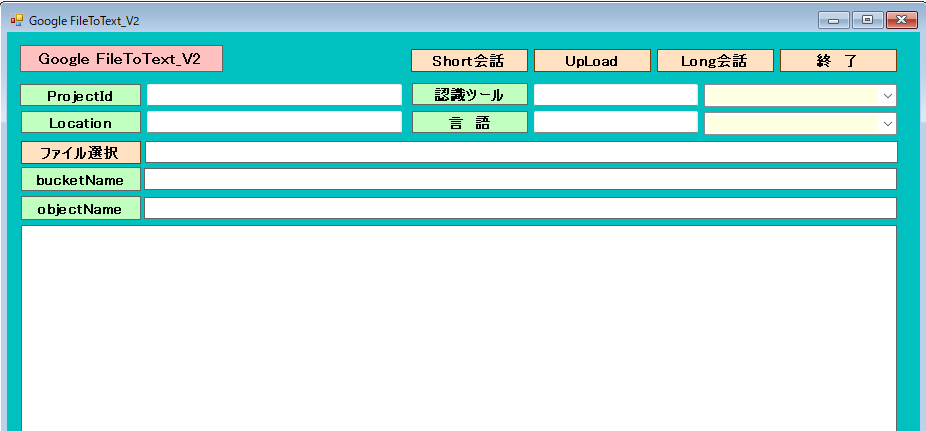
実行画面
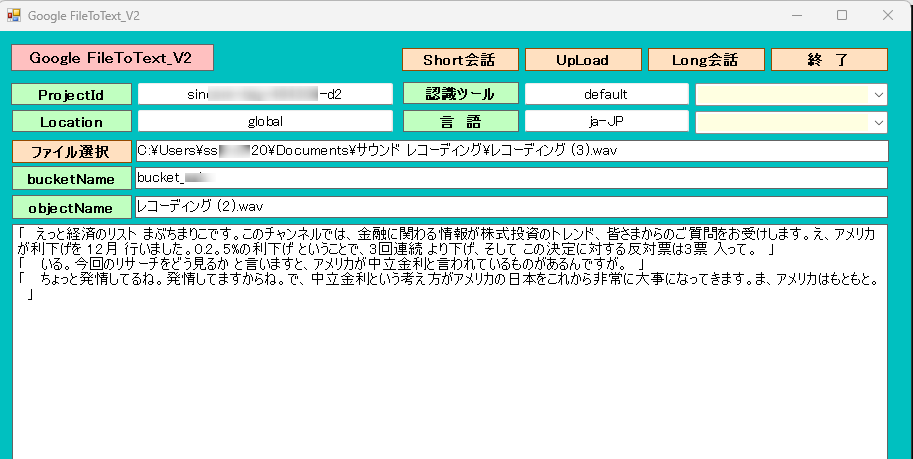
1.[ファイル選択]ボタンで音声ファイルを選択します。
2.サンプルレート、言語を入力します。
3.[Short会話]ボタンでテキスト化します。但し、ファイルサイズは、約10MB以下の制限があります。
4.ファイルサイズが、大きいものはグラウド(Cloud Storage)にアップロード後に[Long会話]ボタンでテキスト化します。
5.アップロードは、bucketNmae(パケットフォルダ)とobjectName(ファイル名)を入力後[UpLoad]ボタンで実行します。
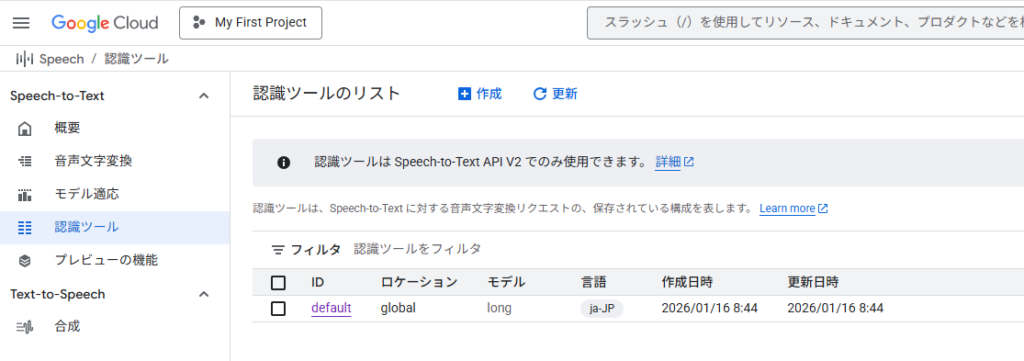
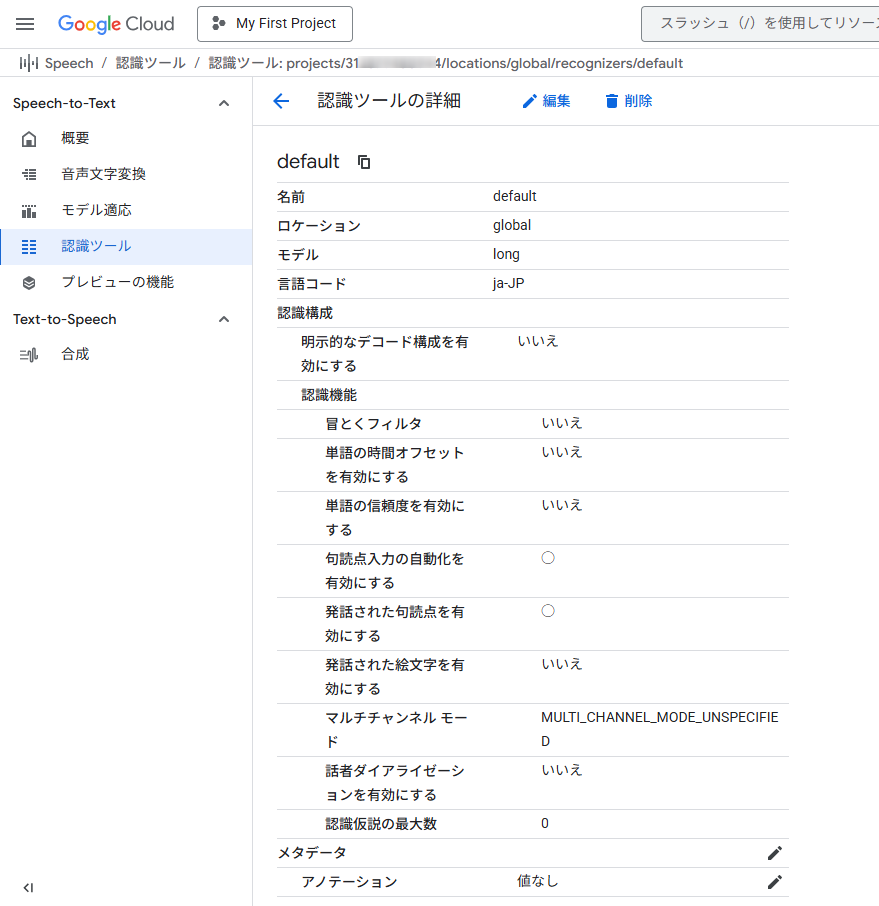
* v2では、ProjectId 、Location 、認識ツール(事前に設定しておく)が必要となります。自動オーディオ検出になります。
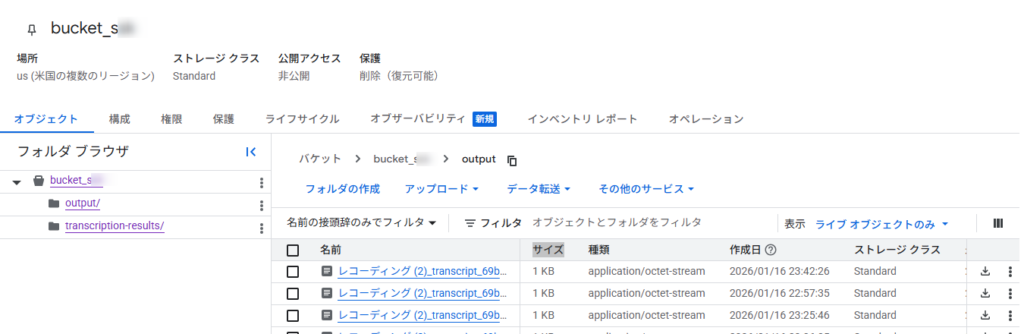
認識結果は、Cloudに保存されます。結果を利用するためには、Cloudに保存されたJsonファイルをダンロードする必要があります。
内部メモリーに保存することが出来ませんでした。バージョンが上がれば利用できるようです。Geminiへ問合せしました。
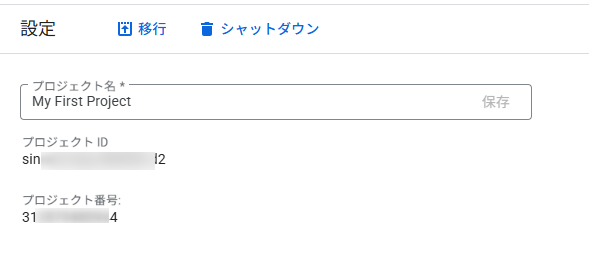
プロジェクト名
認識結果の保存先
認識ツールの作成
Form1
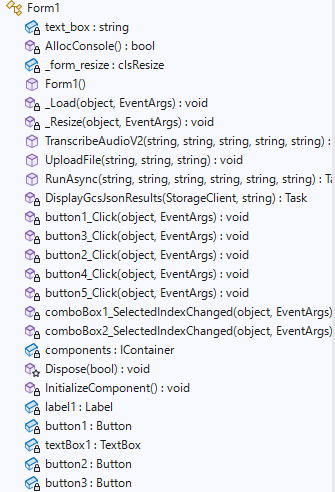
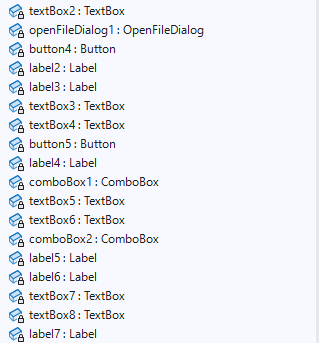
Form1.cs
using Google.Cloud.Speech.V2;
using Google.Cloud.Storage.V1;
using Google.LongRunning;
using Google.Protobuf;
using Newtonsoft.Json;
using Newtonsoft.Json.Linq;
using System;
using System.Collections.Generic;
using System.ComponentModel;
using System.Data;
using System.Drawing;
using System.IO;
using System.Linq;
using System.Security.AccessControl;
using System.Text;
using System.Threading.Tasks;
using System.Windows.Forms;
using static System.Windows.Forms.VisualStyles.VisualStyleElement;
// 名前空間のエイリアスを使うと混乱を防げます
using SpeechV2 = Google.Cloud.Speech.V2;

namespace GoogleFileToText
{
    public partial class Form1 : Form
    {

        private static string text_box;

        [System.Runtime.InteropServices.DllImport("kernel32.dll")]
        private static extern bool AllocConsole();

        //control clsResize
        clsResize _form_resize;

        public Form1()
        {
            InitializeComponent();

            AllocConsole();

            // プロセス環境変数の設定
            string secretPath = Application.StartupPath + "\\sinxxre-xxx-xxxxxx-d2-xxxxxxx822c.json";
            System.Environment.SetEnvironmentVariable("GOOGLE_APPLICATION_CREDENTIALS", secretPath, EnvironmentVariableTarget.Process);

            //認識ツール
            comboBox1.Items.Add("default");
            textBox5.Text = "default";

            //言語
            comboBox2.Items.Add("ja-JP");
            textBox6.Text = "ja-JP";

            //既定bucket
            textBox3.Text = "bucket_ssk";

            //projectId
            textBox7.Text = "sincere-bay-484306-d2";

            //location
            textBox8.Text = "global";

            _form_resize = new clsResize(this); //I put this after the initialize event to be sure that all controls are initialized properly

            this.Load += new EventHandler(_Load); //This will be called after the initialization // form_load
            this.Resize += new EventHandler(_Resize); //form_resize

        }

        //clsResize _Load
        private void _Load(object sender, EventArgs e)
        {
            _form_resize._get_initial_size();

        }

        //clsResize _Resize
        private void _Resize(object sender, EventArgs e)
        {
            _form_resize._resize();

        }


        public void TranscribeAudioV2(string filePath,string projectId,string location,string recognizerId,string lang)
        {
            text_box = "";     //認識結果用
            // プロジェクトID、リージョン。認識の設定します。あらかじめ認識の設定が必要です。
            // projectId    プロジェクト名ではなくID
            // location     ロケーション "global"
            // recognizeId   認識名 用途別に設定できます。"default"
            // lang            対応言語 "ja-JP"

            // 認識を実行する Recognizer のフルネームを作成します。
            var recognizerName = RecognizerName.FromProjectLocationRecognizer(projectId, location, recognizerId);

            // 文字起こししたいオーディオファイルのパスを指定します。
            string audioFilePath = filePath;

            // SpeechClientを作成します。認証は自動的に処理されます。
            SpeechClient client = SpeechClient.Create();

            // オーディオファイルをバイト配列として読み込みます。
            byte[] audioBytes = File.ReadAllBytes(audioFilePath);

            // Recognizeリクエストを作成します。
            RecognizeRequest request = new RecognizeRequest
            {
                Recognizer = recognizerName.ToString(),
                Content = Google.Protobuf.ByteString.CopyFrom(audioBytes),
                // オーディオ形式や言語などの設定は、Recognizerリソースのデフォルト設定から自動検出されます。
                // 特定の設定をオーバーライドしたい場合は、Configプロパティで指定できます。
                /*
                Config = new RecognitionConfig
                {
                    AutoDecodingConfig = new AutoDetectDecodingConfig(),
                    LanguageCodes = { lang },   // "ja-JP"
                    Model = "long",
                    Features = new RecognitionFeatures
                    {
                        // 句読点の自動挿入を有効にする
                        EnableAutomaticPunctuation = true,

                        // 以下のオプションを組み合わせると、句読点の判定精度が上がることがあります
                        EnableWordTimeOffsets = true,
                    }
                }
                */
            };

            // 同期音声認識を実行します。
            RecognizeResponse response = client.Recognize(request);

            // 結果を表示します。
            foreach (var result in response.Results)
            {
                foreach (var alternative in result.Alternatives)
                {
                    Console.WriteLine($"Transcript: {alternative.Transcript}");
                    text_box += $"「 {alternative.Transcript} 」" + "\r\n";
                }
            }
        }

        //UpLoadFile
        public void UploadFile(string bucketName, string localPath, string objectName)
        {
            // The StorageClient automatically uses Application Default Credentials (ADC) for authentication.
            var storage = StorageClient.Create();

            // Use a file stream to read the file data.
            var fileStream = File.OpenRead(localPath);

            // Upload the object. The content type can be automatically determined by GCS if null is passed.
            storage.UploadObject(bucketName, objectName, null, fileStream);

            Console.WriteLine($"Uploaded {objectName} to bucket {bucketName}.");
        }

        public async Task RunAsync(string projectId, string location,string recognizerId,string inputGcsUri, string outputGcsFolder,string lang)
        {
            // projectId    プロジェクト名ではなくID
            // location     ロケーション "global"
            // recognizeId   認識名 用途別に設定できます。"default"
            // inputGcsUri     認識するファイルのgcsのuri
            // outputGcsFolder 認識結果を出力するフォルダー Json形式
            // lang            言語

            // 1. 各種クライアントの初期化
            SpeechClient speechClient = await SpeechClient.CreateAsync();
            StorageClient storageClient = await StorageClient.CreateAsync();


            /* 既存の認識ツールを利用する場合は、-----------------------------------
            // 1. Recognizerのフルパスを準備
            string recognizerId = "my-custom-recognizer"; // あなたが作成した名前
            string recognizerPath = $"projects/{projectId}/locations/global/recognizers/{recognizerId}";

            var request = new BatchRecognizeRequest
            {
                // ここに "_ " ではなく、作成したパスを入れる
                Recognizer = recognizerPath,

                Files = { new BatchRecognizeFileMetadata { Uri = inputGcsUri } },

                // 既存の Recognizer の設定をそのまま使う場合は、
                // Config 自体を設定しない、もしくは空のままでも動作します。
                // もし上書きしたい設定(句読点など)があれば、ここに追加します。
                Config = new RecognitionConfig
                {
                    Features = new RecognitionFeatures
                    {
                        EnableAutomaticPunctuation = true
                    }
                },

                RecognitionOutputConfig = new RecognitionOutputConfig
                {
                    GcsOutputConfig = new GcsOutputConfig { Uri = outputGcsFolder }
                }
            };

            -------------------------------------------------------------------------*/

            // 2. BatchRecognize リクエストの構築
            var request = new BatchRecognizeRequest
            {
                // global位置のデフォルトRecognizerを使用
                Recognizer = $"projects/{projectId}/locations/global/recognizers/_",
                Files = { new BatchRecognizeFileMetadata { Uri = inputGcsUri } },
                Config = new RecognitionConfig
                {
                    AutoDecodingConfig = new AutoDetectDecodingConfig(),
                    LanguageCodes = { lang },        // "ja-JP"
                    Model = "long",
                    Features = new RecognitionFeatures
                    {
                        // 句読点の自動挿入を有効にする
                        EnableAutomaticPunctuation = true,

                        // 以下のオプションを組み合わせると、句読点の判定精度が上がることがあります
                        EnableWordTimeOffsets = true,
                    }
                },
                RecognitionOutputConfig = new RecognitionOutputConfig
                {
                    // 結果を GCS に保存する設定
                    GcsOutputConfig = new GcsOutputConfig { Uri = outputGcsFolder }
                }
            };

            Console.WriteLine("音声認識を開始します...");
            var operation = await speechClient.BatchRecognizeAsync(request);

            // 完了まで待機
            var completedOp = await operation.PollUntilCompletedAsync();

            //await Task.Delay(2000);

            // 3. 辞書形式(Map)の Results から GCS の出力先パスを取得
            // バージョン 1.7.0 では .Values.First() で取得するのが最も安全です
            var fileResult = completedOp.Result.Results.Values.First();

            if (fileResult.CloudStorageResult == null)
            {
                Console.WriteLine("GCSの出力パスが見つかりませんでした。");
                MessageBox.Show("GCSの出力パスが見つかりませんでした。");
                return;
            }

            string outputJsonUri = fileResult.CloudStorageResult.Uri;
            Console.WriteLine($"解析完了。JSONパス: {outputJsonUri}");

            // 4. GCS から JSON をメモリ内に読み込み、コンソールに表示
            await DisplayGcsJsonResults(storageClient, outputJsonUri);

        }

        //JSONファイルの読み取り(日本語ファイル名対応)
        private async Task DisplayGcsJsonResults(StorageClient storageClient, string gcsUri)
        {

            text_box = "";

            Console.WriteLine($"[1/4] 開始: {gcsUri}");

            // --- 【修正ポイント】Uri クラスを使わずに文字列操作で分離する ---
            // gs:// を除いた後のパスを取得
            string pathWithoutProtocol = gcsUri.Replace("gs://", "");
            int firstSlashIndex = pathWithoutProtocol.IndexOf('/');

            string bucketName = pathWithoutProtocol.Substring(0, firstSlashIndex);
            // URLエンコードを解除(デコード)して、純粋な日本語のファイル名に戻す
            string objectName = Uri.UnescapeDataString(pathWithoutProtocol.Substring(firstSlashIndex + 1));

            Console.WriteLine($"[デバッグ] バケット名: {bucketName}");
            Console.WriteLine($"[デバッグ] オブジェクト名: {objectName}");
            // -------------------------------------------------------------

            try
            {
                using (var ms = new MemoryStream())
                {
                    Console.WriteLine("[2/4] GCSからダウンロード中...");

                    // 日本語名そのままの objectName を渡す
                    await storageClient.DownloadObjectAsync(bucketName, objectName, ms).ConfigureAwait(false);

                    Console.WriteLine($"[3/4] ダウンロード完了。サイズ: {ms.Length} bytes");

                    ms.Position = 0;
                    using (var reader = new StreamReader(ms, Encoding.UTF8, true))
                    {
                        string jsonContent = await reader.ReadToEndAsync().ConfigureAwait(false);

                        Console.WriteLine("[4/4] JSONパース開始...");
                        JObject json = JObject.Parse(jsonContent);

                        var results = json["results"];
                        if (results != null)
                        {
                            foreach (var result in results)
                            {
                                var text = result["alternatives"]?[0]?["transcript"];
                                if (text != null)
                                {
                                    Console.WriteLine($"Transcript: {text}");
                                    text_box += $"「 {text} 」" + "\r\n";
                                }
                            }
                        }
                    }
                }
            }
            catch (Exception ex)
            {
                Console.WriteLine("【致命的エラー】");
                Console.WriteLine(ex.Message); // 詳細なメッセージを表示
                MessageBox.Show("【致命的エラー】" + ex.Message);
                if (ex.InnerException != null) Console.WriteLine($"Inner: {ex.InnerException.Message}");
            }

        }

        //select
        private void button1_Click(object sender, EventArgs e)
        {
            //OpenFileDialogクラスのインスタンスを作成
            OpenFileDialog ofd = new OpenFileDialog();

            //はじめのファイル名を指定する
            //はじめに「ファイル名」で表示される文字列を指定する
            ofd.FileName = "";
            //はじめに表示されるフォルダを指定する
            //指定しない(空の文字列)の時は、現在のディレクトリが表示される
            ofd.InitialDirectory = @"C:\";
            //[ファイルの種類]に表示される選択肢を指定する
            //指定しないとすべてのファイルが表示される
            ofd.Filter = "waveファイル(*.wav)|*.wav|すべてのファイル(*.*)|*.*";
            //[ファイルの種類]ではじめに選択されるものを指定する
            //2番目の「Waveファイル」が選択されているようにする
            ofd.FilterIndex = 1;
            //タイトルを設定する
            ofd.Title = "開くファイルを選択してください";
            //ダイアログボックスを閉じる前に現在のディレクトリを復元するようにする
            ofd.RestoreDirectory = true;
            //存在しないファイルの名前が指定されたとき警告を表示する
            //デフォルトでTrueなので指定する必要はない
            ofd.CheckFileExists = true;
            //存在しないパスが指定されたとき警告を表示する
            //デフォルトでTrueなので指定する必要はない
            ofd.CheckPathExists = true;

            //ダイアログを表示する
            if (ofd.ShowDialog() == DialogResult.OK)
            {
                //OKボタンがクリックされたとき、選択されたファイル名を表示する
                Console.WriteLine(ofd.FileName);
                textBox1.Text = ofd.FileName;
            }

        }

        //Long
        private async void button3_Click(object sender, EventArgs e)
        {
            if (textBox3.Text.Length == 0)
            {
                MessageBox.Show("フォルダー(パケット)名が空です。");
                return;
            }
            if (textBox4.Text.Length == 0)
            {
                MessageBox.Show("ファイル名が空です。");
                return;
            }

            // プロジェクトID、リージョン。認識の設定します。あらかじめ認識の設定が必要です。
            string projectId = textBox7.Text;     //プロジェクト名ではなく、ID
            string location = textBox8.Text;      // "global"
            string recognizerId = textBox5.Text;  // "default" 認識名 用途別に設定できます。
            string gcsUri = @"gs://" + textBox3.Text + @"/" + textBox4.Text; //cloud storageのGSCのファイルパス
            string outputGcs = @"gs://" + textBox3.Text + @"/output/";       //認識結果を保存するフォルダー名(バケット名)
            string lang=textBox6.Text;             //対応言語 "ja-JP"

            await RunAsync(projectId,location,recognizerId, gcsUri,outputGcs,lang);

            textBox2.Text = text_box;

        }

        //end
        private void button2_Click(object sender, EventArgs e)
        {
           this.Close();

        }

        //UpLoad
        private void button4_Click(object sender, EventArgs e)
        {
            if (textBox3.Text.Length == 0)
            {
                MessageBox.Show("フォルダー(パケット)名が空です。");
                return;
            }
            if (textBox4.Text.Length == 0)
            {
                MessageBox.Show("ファイル名が空です。");
                return;
            }

            UploadFile(textBox3.Text, textBox1.Text, textBox4.Text);

        }

        //Short
        private void button5_Click(object sender, EventArgs e)
        {
            if (textBox1.Text.Length == 0)
            {
                MessageBox.Show("ファイル名が空です。");
                return;
            }

            string filePath = textBox1.Text;             //ファイルパス
            string projectId = textBox7.Text;            //プロジェクト名ではなくID
            string location = textBox8.Text;             //ロケーション "global"
            string recognizerId = textBox5.Text;         //認識ツールId "default"
            string lang = textBox6.Text;                 //対応言語 "ja-JP"

            TranscribeAudioV2(filePath,projectId,location,recognizerId,lang);

            textBox2.Text = text_box;

        }

        private void comboBox1_SelectedIndexChanged(object sender, EventArgs e)
        {
            textBox5.Text=comboBox1.Text;

        }

        private void comboBox2_SelectedIndexChanged(object sender, EventArgs e)
        {
            textBox6.Text = comboBox2.Text;
        }
    }


}
clsResize
using System;
using System.Collections.Generic;
using System.Linq;
using System.Text;
using System.Windows.Forms;

public class clsResize
{
    List<System.Drawing.Rectangle> _arr_control_storage = new List<System.Drawing.Rectangle>();
    private bool showRowHeader = false;
    public clsResize(Form _form_)
    {
        form = _form_; //the calling form
        _formSize = _form_.ClientSize; //Save initial form size
        _fontsize = _form_.Font.Size; //Font size

        //ADD
        var _controls = _get_all_controls(form);//call the enumerator
        FontTable = new Dictionary<string, float>();
        ControlTable = new Dictionary<string, System.Drawing.Rectangle>();
        foreach (Control control in _controls) //Loop through the controls
        {
            FontTable.Add(control.Name, control.Font.Size);
            ControlTable.Add(control.Name, control.Bounds);
        }
        //ADD

    }

    //ADD
    Dictionary<string, float> FontTable;
    Dictionary<string, System.Drawing.Rectangle> ControlTable;
    //ADD

    private float _fontsize { get; set; }

    private System.Drawing.SizeF _formSize { get; set; }

    private Form form { get; set; }

    public void _get_initial_size() //get initial size//
    {
        var _controls = _get_all_controls(form);//call the enumerator
        foreach (Control control in _controls) //Loop through the controls
        {
            _arr_control_storage.Add(control.Bounds); //saves control bounds/dimension
            //If you have datagridview
            if (control.GetType() == typeof(DataGridView))
                _dgv_Column_Adjust(((DataGridView)control), showRowHeader);
        }
    }

    public void _resize() //Set the resize
    {
        double _form_ratio_width = (double)form.ClientSize.Width / (double)_formSize.Width; //ratio could be greater or less than 1
        double _form_ratio_height = (double)form.ClientSize.Height / (double)_formSize.Height; // this one too
        var _controls = _get_all_controls(form); //reenumerate the control collection
        int _pos = -1;//do not change this value unless you know what you are doing
        foreach (Control control in _controls)
        {

            //ADD
            this._fontsize = FontTable[control.Name]; //<-取得したコントロールのフォントサイズ値で上書きするためにこれを追加
            //ADD

            // do some math calc
            _pos += 1;//increment by 1;
            System.Drawing.Size _controlSize = new System.Drawing.Size((int)(_arr_control_storage[_pos].Width * _form_ratio_width),
                (int)(_arr_control_storage[_pos].Height * _form_ratio_height)); //use for sizing

            System.Drawing.Point _controlposition = new System.Drawing.Point((int)
            (_arr_control_storage[_pos].X * _form_ratio_width), (int)(_arr_control_storage[_pos].Y * _form_ratio_height));//use for location

            //set bounds
            control.Bounds = new System.Drawing.Rectangle(_controlposition, _controlSize); //Put together

            //Assuming you have a datagridview inside a form()
            //if you want to show the row header, replace the false statement of
            //showRowHeader on top/public declaration to true;
            if (control.GetType() == typeof(DataGridView))
                _dgv_Column_Adjust(((DataGridView)control), showRowHeader);


            //Font AutoSize
            control.Font = new System.Drawing.Font(form.Font.FontFamily,
             (float)(((Convert.ToDouble(_fontsize) * _form_ratio_width) / 2) +
              ((Convert.ToDouble(_fontsize) * _form_ratio_height) / 2)));

        }
    }

    private void _dgv_Column_Adjust(DataGridView dgv, bool _showRowHeader) //if you have Datagridview
    //and want to resize the column base on its dimension.
    {
        int intRowHeader = 0;
        const int Hscrollbarwidth = 5;
        if (_showRowHeader)
            intRowHeader = dgv.RowHeadersWidth;
        else
            dgv.RowHeadersVisible = false;

        for (int i = 0; i < dgv.ColumnCount; i++)
        {
            if (dgv.Dock == DockStyle.Fill) //in case the datagridview is docked
                dgv.Columns[i].Width = ((dgv.Width - intRowHeader) / dgv.ColumnCount);
            else
                dgv.Columns[i].Width = ((dgv.Width - intRowHeader - Hscrollbarwidth) / dgv.ColumnCount);
        }
    }


    private static IEnumerable<Control> _get_all_controls(Control c)
    {
        return c.Controls.Cast<Control>().SelectMany(item =>
            _get_all_controls(item)).Concat(c.Controls.Cast<Control>()).Where(control =>
            control.Name != string.Empty);
    }
}
